Here's a mistake that happens more often than it should: an organization scans years of contracts, uploads them to Google Drive, and assumes they're searchable. When a tight-deadline records request comes through, they discover their "digital archive" is just a folder of picture files—no searchable text, no way to quickly find specific clauses or client names, and no efficient path to redacting sensitive information before disclosure.
The missing step isn't backup procedures or cloud storage. It's the process that turns images of text into actual, machine-readable characters: Optical Character Recognition.
Here's what caught them off guard: Google Workspace quietly performs text extraction on some PDFs and images so that Drive search can "see" words inside a scan, even when you can't select or copy text in the PDF itself. But that automatic indexing doesn't create an editable document. It doesn't help you redact information. And it doesn't work reliably on every file format or image quality level.
Government digitization standards from agencies like the U.S. National Archives and EPA explicitly recommend "image-over-text" PDFs—scanned pages with an OCR text layer—because they dramatically improve access and retrieval compared to image-only files. But those same standards stress that OCR is never 100% accurate and requires human review for any critical use.
Google Docs OCR sits in an interesting middle ground: powerful enough for everyday users who need quick scan-to-text conversion, but limited in ways that matter if you handle regulated or confidential information.
By the end of this guide, you'll know how to:
- Convert a scanned PDF or photo into editable text using Google Docs and Google Drive
- Understand when Google's free OCR is appropriate and when you need a more robust or specialized workflow
- Apply basic data protection practices when OCR'ing documents that contain personal, health, or confidential business data
OCR basics: What it is and why it matters
What is OCR in plain language?
Optical Character Recognition (OCR) is the process that converts images of text - scanned pages, photos, faxed documents - into machine-readable, searchable characters that your computer can index, copy, and search.
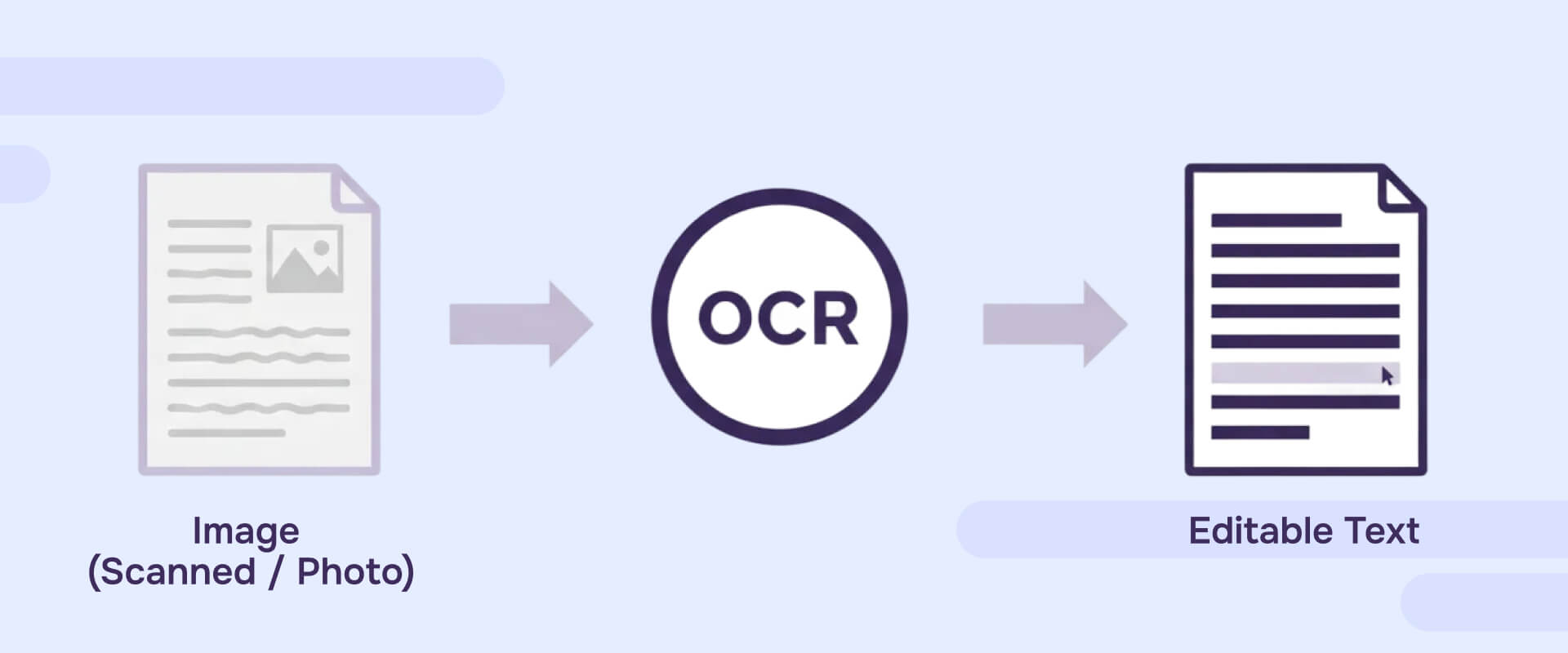
Here's a concrete example: A scanned contract page is initially just pixels arranged to look like words. Your PDF viewer displays the image, but your computer has no idea what the text says. OCR software analyzes shapes, recognizes letters and numbers, and outputs actual characters. After OCR, you can search for "termination clause," copy an address, or run a find-and-replace operation.
Why OCR matters for records management and everyday work
Searchability is the obvious benefit. But OCR also underpins accessibility (screen readers need text, not pictures of text), retention compliance (agencies require searchable records for efficient retrieval), and redaction workflows (you can't redact what you can't select).
Federal digitization standards from the National Archives explicitly call out OCR "image-over-text" PDFs as preferred for text-heavy records because they combine a faithful image of the original page with searchable text underneath. This matters for legal defensibility: the image preserves appearance and content exactly as scanned, while the text layer enables fast retrieval.
The EPA's digitization standard makes the tradeoff clear: OCR and content indexing dramatically improve access, but accuracy is never perfect. Even high-quality OCR produces character-level errors that require human review for mission-critical work.
What Google docs and Google drive actually do with scans
Where OCR shows up in Google's ecosystem
Google offers two distinct OCR-related behaviors, and many users confuse them:
- Google Docs OCR: When you right-click a scanned PDF or image in Google Drive and select "Open with → Google Docs," Google creates a new document where the original image appears at the top and extracted text appears below as editable content.
- Google Drive automatic text extraction: Google Drive's backend can make words inside some PDFs and images searchable in Drive search, even when the PDF itself still looks like a picture with no selectable text. This happens automatically for eligible files but doesn't create an editable document.
The first is deliberate conversion. The second is background indexing. Understanding the difference matters when you're building workflows for redaction, records retention, or compliance.
Important distinction: This guide covers the built-in, user-facing OCR in Google Docs and Drive. Google also offers paid developer tools (Cloud Vision API, Document AI) for high-volume or specialized OCR needs, but those are separate products outside the scope of everyday Google Workspace users.
What kinds of files Google's text extraction can work with
Google's text extraction capabilities support PDFs marked as image-based and common image formats (JPEG, PNG). But here's the catch: quality matters.
Federal digitization standards distinguish between "image only" PDFs (just pictures, no searchable text) and "image over text" PDFs (pictures with an OCR layer embedded). Google Docs helps individual users approximate the latter by converting scans to documents where text sits adjacent to or layered under the image.
But EPA guidance is explicit: badly skewed photos, very small text, complex layouts with columns or tables, and heavy handwriting all reduce OCR accuracy. Google Docs won't magically fix a blurry phone photo of a crumpled receipt.
Step-by-step: Google docs OCR (scan to text)
Step 1: Prepare your scan or image
Start with a reasonable quality scan. Government scanning standards typically recommend:
- Resolution: 300 DPI minimum for standard text documents (higher for small fonts or detailed graphics)
- Format: PDF, JPEG, or PNG
- Image quality: Straight pages, clear contrast between text and background, minimal skew
Common mistakes that hurt OCR accuracy:
- Scanning in color when black-and-white would produce sharper text contrast
- Taking photos at angles instead of straight-on
- Compressing images too aggressively, causing text to blur
- Scanning double-sided pages that bleed through
If you're working with already-scanned files, check if they're searchable before running OCR. Open the PDF, try to select text. If you can't select anything, it's an image-only file that needs OCR.
Step 2: Upload to Google Drive
- Sign in to your Google Drive account
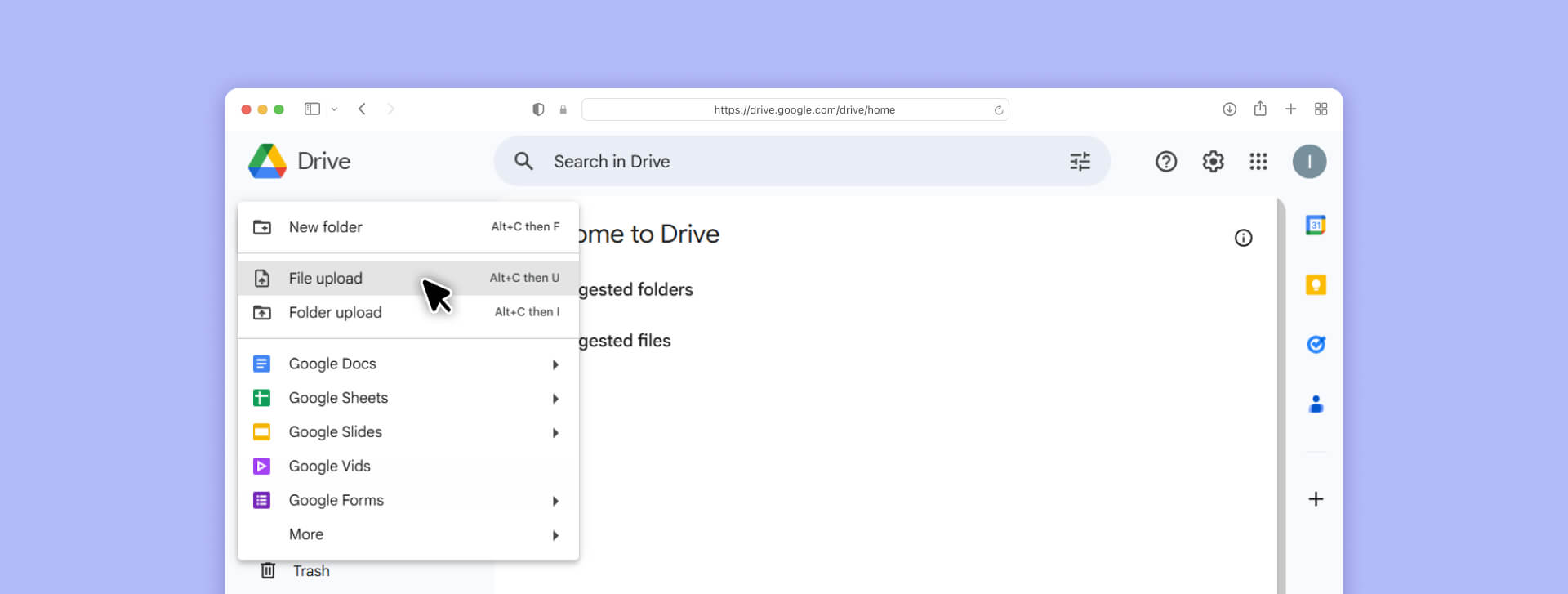
2. Click "New" → "File upload" or drag your scanned PDF/image into the Drive window
3. Wait for the upload to complete
Note on organization: If you're processing multiple scans, create a dedicated folder. This becomes important for security (you can set folder-level sharing restrictions) and workflow (keeping originals separate from OCR'd versions).
Step 3: Convert with Google Docs OCR
- Locate your uploaded file in Google Drive
- Right-click the file
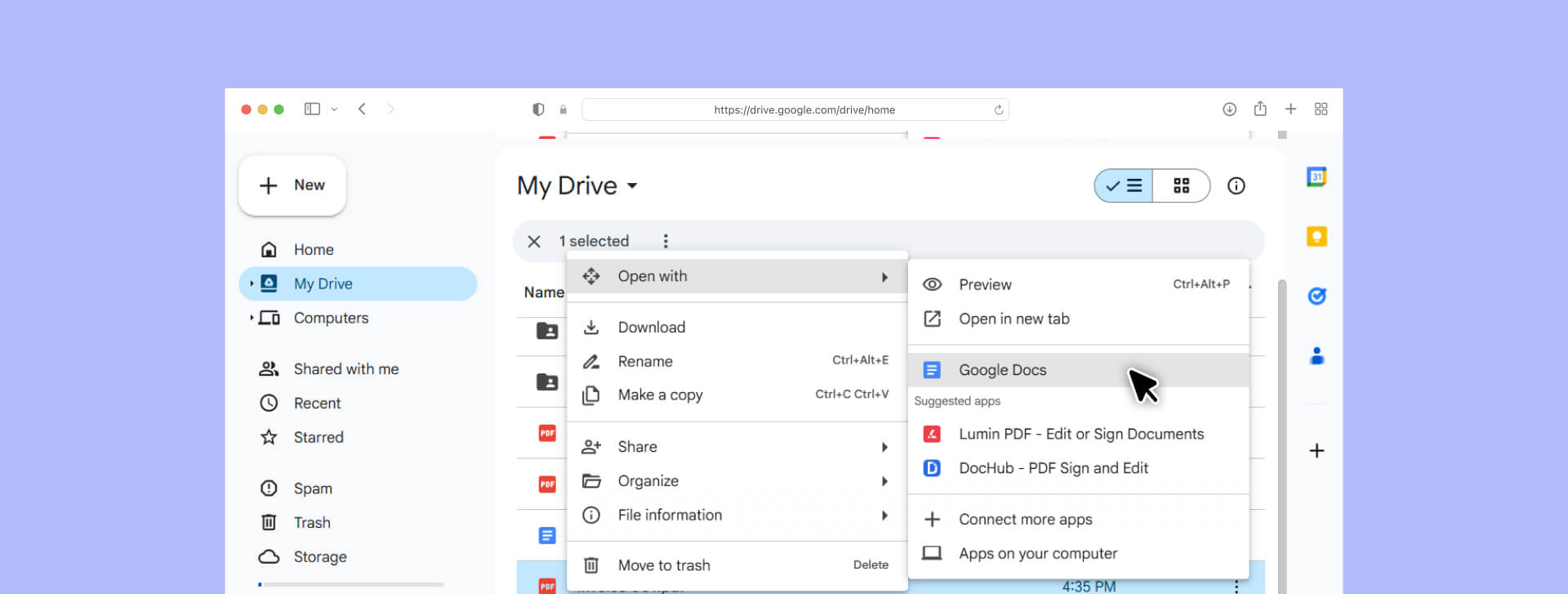
3. Select "Open with" → "Google Docs"
4. Wait while Google processes the file (larger files take longer)
What happens next: Google Docs opens a new document with two key elements:
- The original image appears at the top, preserving a visual record of the source
- Extracted text appears below as editable content
This is a new, separate Google Doc—not a modified version of your original PDF. The original remains unchanged in your Drive.
Step 4: Review and edit the OCR output
Google's OCR is good, but not perfect. You'll typically see:
What works well:
- Clean, typed text in standard fonts
- Simple single-column layouts
- High-contrast documents (black text on white background)
- Common languages (English, Spanish, French, German, etc.)
What struggles:
- Tables and multi-column layouts (often flatten into running text)
- Handwriting and signatures (usually unrecognized or garbled)
- Stylized fonts, especially decorative headers
- Low-contrast or faded originals
- Numbers that look like letters (0 vs O, 1 vs l vs I)
EPA digitization standards explicitly state that only human review can approach 100% accuracy. Spot-check critical details:
- Names (especially unusual spellings)
- Addresses and phone numbers
- Dollar amounts and account numbers
- Dates and ID numbers
- Legal terminology or technical language
Step 5: Export your OCR'd result
Once you've reviewed and corrected the text:
- Click "File" → "Download"
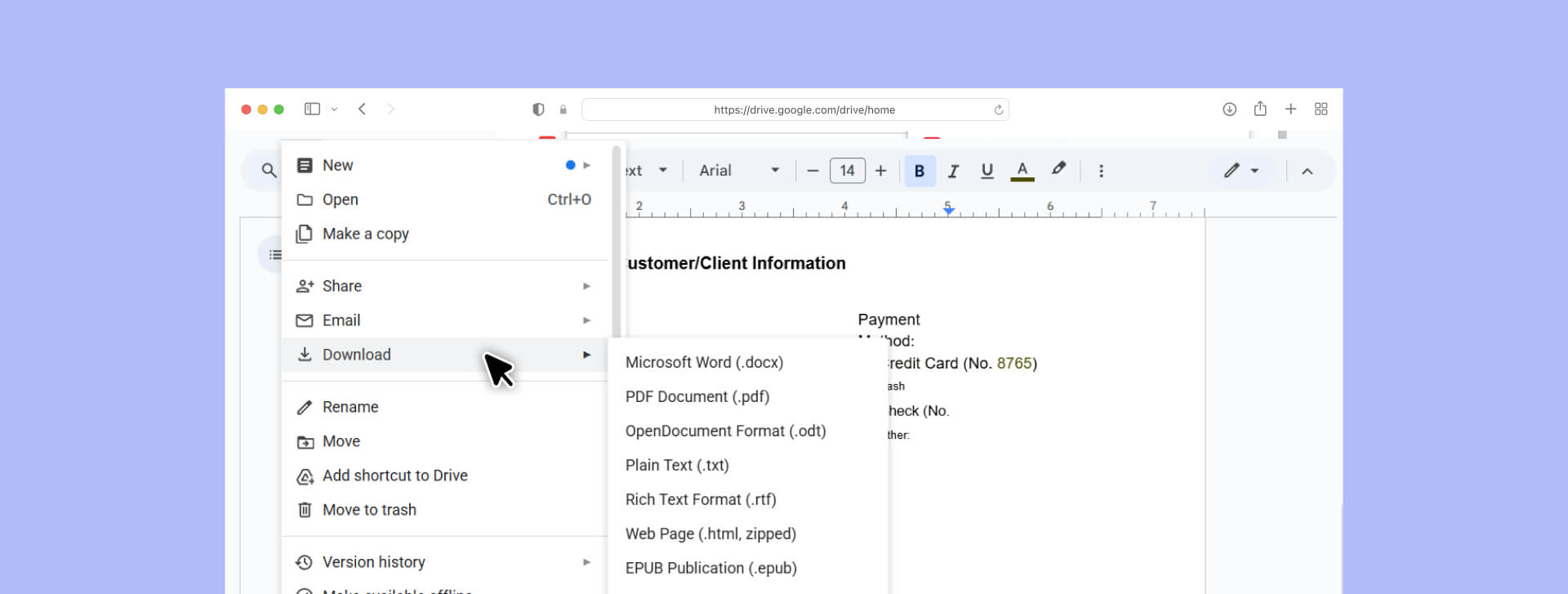
2. Choose your format:
- Microsoft Word (.docx): Preserves formatting and allows further editing in Word
- PDF: Creates a new PDF with selectable text (an "image-over-text" PDF if the original image is still embedded)
- Plain Text (.txt): Strips all formatting, keeps only characters
Important for records management: National Archives guidance emphasizes that the original "image only" scan and the OCR'd "image-over-text" version should both preserve the underlying page image. This ensures content and appearance remain identical to the source, which matters for legal evidence and compliance.
Your newly generated file is separate from your original scan. Keep both if you need to demonstrate that OCR didn't alter the source document.
Using Google's OCR output in real workflows
Making scans searchable and usable
The immediate payoff: you can now search within your document for specific terms.
Practical applications:
- Contract review: Search for "termination," "indemnification," or specific client names
- Medical records: Find mentions of medications, diagnoses, or dates of service
- Financial documents: Locate account numbers, transaction amounts, or vendor names
- Legal discovery: Identify responsive documents by searching for key terms across multiple files
One quirk of Google Drive's automatic text extraction: some PDFs become searchable in Drive without the text being selectable in the PDF viewer. Users report finding documents via Drive search that still appear to be "image only" when opened. This happens because Drive indexes extracted text in the background, but doesn't modify the PDF file itself.
For practical workflow purposes, this means you can find documents with Drive search, but you still need to use the "Open with Google Docs" method if you want to edit, copy, or properly redact the text.
Redacting sensitive text after OCR
Here's where many workflows break down: getting text out of a scan is step one. Protecting sensitive information before sharing is step two.
A critical distinction from federal records standards: real redaction isn't drawing black boxes over text. The underlying text must be permanently removed or replaced. Improperly handled redaction leaves searchable or recoverable text in the file—a compliance failure and potential data breach.
Basic workflow for beginners handling sensitive scans:
- Use Google Docs OCR to surface text that needs protection: Search for Social Security numbers, account numbers, patient names, or other identifiers
- Identify what must be redacted: Understand which information is regulated (PII under state breach laws, PHI under HIPAA, PCI cardholder data, etc.)
- Don't rely on Google Docs for actual redaction: Google Docs isn't designed for permanent, compliant redaction. Text you "delete" can often be recovered from version history, and document metadata persists
- Export to a proper redaction tool: Use specialized software that removes text and metadata permanently, not just visually
Government practices generally separate "access copies" (which might have redactions or OCR added) from protected originals (preserved in secure, unmodified form). This creates a defensible audit trail.
Quality control: why "good enough" OCR isn't good enough for sensitive work
EPA's digitization standard is blunt about OCR limitations: automated text extraction is "extremely helpful" but "not infallible." Only human review and re-keying approach 100% accuracy in content indexing.
The risk compounds with sensitive data. An OCR error that turns "DO NOT prescribe" into "prescribe" in a medical record, or "$10,000" into "$100,000" in a financial document, isn't just inconvenient—it's a potential liability.
Spot-checking requirements for high-stakes documents:
- Legal contracts: Verify dollar amounts, dates, party names, and critical terms
- Medical records: Confirm medications, dosages, diagnoses, and patient identifiers
- Financial statements: Check account numbers, transaction amounts, and dates
- Government forms: Validate ID numbers, addresses, and answers to critical questions
If the document will be used for legal proceedings, regulatory submissions, or financial decisions, budget time for human review. Google Docs OCR is a starting point, not a certified accuracy guarantee.
What are the data protection and security risks of Google docs OCR
Why security matters for scanned documents
Scanned documents aren't just digital paper—they're often treasure troves of sensitive information. Medical records contain protected health information (PHI) regulated under HIPAA. Contracts include confidential business terms. Financial records show account numbers and transaction history.
Security guidance mapping HIPAA requirements to NIST frameworks treats electronic protected health information as high-risk if mishandled, emphasizing that cloud services require careful assessment of security controls and data access.
Once a document is uploaded to Google Drive, your security posture depends on:
- The cloud service's controls and infrastructure (Google's responsibility)
- Your account security and configuration (your responsibility)
- Who has access to shared folders and files (your responsibility)
- How your organization's policies govern cloud tool usage (your responsibility)
The question isn't "Is Google Drive secure?"—it's "Have you configured it securely for the type of data you're handling?"
Baseline security practices when OCR'ing in the cloud
Practical measures aligned with updated HIPAA-NIST cybersecurity guidance:
Account security:
- Enable two-factor authentication on the Google account handling scans
- Use strong, unique passwords (password manager recommended)
- Review account recovery options to prevent unauthorized access
Access controls:
- Limit sharing on folders containing sensitive documents (avoid "anyone with the link")
- Use folder-level permissions to restrict who can view, comment, or edit
- Regularly audit shared files and remove access for users who no longer need it
Risk awareness:
- Maintain a simple inventory of where sensitive scans are stored
- Classify documents by sensitivity (public, internal, confidential, regulated)
- Know which documents are subject to breach notification laws if exposed
For organizations under strict regulation (healthcare, finance, legal services), internal policies should determine whether Google Docs is approved for sensitive OCR tasks or whether more controlled solutions are required. The HIPAA-NIST guidance emphasizes that covered entities must assess risk and document their security practices—generic "we use cloud tools" statements don't meet the standard.
Retention, records, and long-term preservation
National Archives guidance requires that OCR not alter the underlying record and that any embedded text layer be consistent with the source content and appearance. This has practical implications for how you configure workflows:
Best practices for records management:
- Preserve original scans as unaltered records
- Treat OCR'd versions as derivatives for access and search, not replacements for the originals
- Document your OCR process (tool used, settings, review procedures) for audit purposes
- Version OCR'd copies separately so you can demonstrate which version was current at any given time
For organizations subject to retention regulations (legal firms, healthcare providers, financial institutions), align Google Docs OCR usage with recognized records-management practices. Don't let ad-hoc "I'll just OCR this real quick" habits create compliance gaps.
When is Google Docs OCR enough and when do you need more
Use cases where Google Docs OCR works well
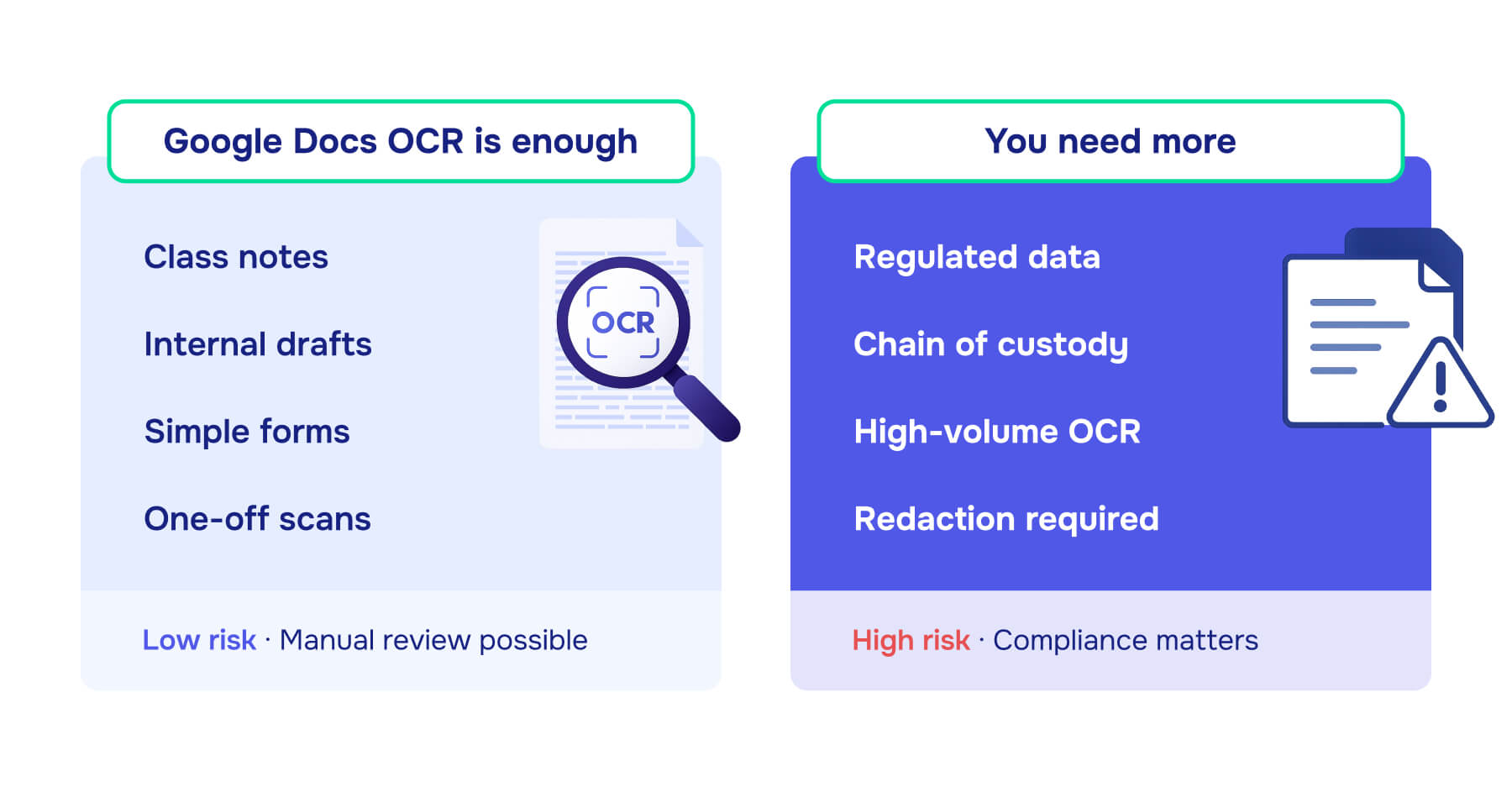
Google's free OCR shines for:
- Class notes and study materials: Scanned textbook pages, handouts, lecture slides (low sensitivity, personal use)
- Internal drafts: Meeting notes, brainstorming documents, early-stage project files (no confidential or regulated data)
- Simple forms: Standardized documents with clean layouts and minimal complexity
- Ad-hoc conversions: One-off scans where you need quick text extraction without building an entire workflow
These scenarios align with government guidance that accepts ordinary OCR for access copies while tolerating occasional character-level errors. The stakes are low, and manual correction is easy.
Signs you need a more robust workflow
You've outgrown Google Docs OCR when:
You're handling regulated data:
- Medical records (PHI under HIPAA)
- Financial account information (PCI cardholder data, banking records under GLBA)
- Legal evidence (chain of custody requirements, litigation holds)
For these scenarios, HIPAA-NIST guidance strongly recommends mapping risk assessments to frameworks such as the NIST Cybersecurity Framework, while HIPAA itself requires documented risk analysis and risk management processes, along with demonstrable safeguards for electronic protected health information.
You need chain of custody and record integrity:
- National Archives standards emphasize preserving original scans as unaltered records while using OCR'd derivatives for access
- Legal discovery requires demonstrating that records haven't been modified improperly
- Audit procedures demand version control and metadata preservation
You're running high-volume scanning programs:
- Consistent OCR quality across thousands of documents
- Automated file naming, indexing, and retention rules
- Multi-level image quality ratings for reliable OCR and long-term archiving
You need redaction workflows:
- Google Docs doesn't provide compliant permanent redaction (text and metadata removal)
- High-volume redaction requires automation and audit trails
- Regulatory requirements (FOIA, HIPAA, litigation discovery) demand more than visual masking
Checklist to choose your approach
Use these questions to decide whether Google Docs OCR fits your needs:
Data classification:
- ☐ What kind of data is in these scans? (Ordinary, personal, health, financial, confidential)
- ☐ What happens if this information is exposed or misused?
- ☐ Are you subject to breach notification laws or industry-specific regulations?
Organizational policies:
- ☐ Do internal policies approve cloud tools like Google Docs for this category of data?
- ☐ Have you completed a risk assessment for using cloud-based OCR on sensitive documents?
- ☐ Are there contractual restrictions (client NDAs, vendor agreements) that limit cloud usage?
Quality and accuracy requirements:
- ☐ Is this a one-time conversion or an ongoing workflow requiring consistency?
- ☐ Will someone review OCR'd output for critical errors before use?
- ☐ Do you need to demonstrate OCR accuracy for legal or regulatory purposes?
Retention and audit requirements:
- ☐ How long must records be kept, and who audits how they're stored?
- ☐ Do you need to preserve original scans separately from OCR'd versions?
- ☐ Can you demonstrate version control and chain of custody if questioned?
If you answered "yes" to any of the compliance, policy, or audit questions, you likely need more than Google Docs OCR. The tool itself isn't inherently insecure - but it wasn't designed for the documentation, controls, and guarantees that regulated industries require.
What are the key takeaways of using Google docs OCR as a starting point
Google Docs OCR solves a common problem: converting image-based scans into searchable, editable text without paying for specialized software. For everyday documents where accuracy isn't mission-critical and data sensitivity is low, it's remarkably capable.
But the same features that make it convenient—cloud-based processing, automatic background indexing, seamless integration with Drive—also introduce considerations for security, compliance, and long-term records management.
Here's what you should take away:
- Know what you're OCR'ing. Not all documents are appropriate for cloud-based processing. Medical records, financial statements, legal contracts, and confidential business information require security controls and risk assessments that go beyond Google's default settings.
- OCR isn't a replacement for human review. Even clean scans produce occasional character errors. If the document matters—legally, financially, or medically—spot-check critical details before relying on OCR'd text.
- Searchability isn't the same as security. Making a scan searchable in Drive doesn't protect sensitive information. You still need access controls, retention policies, and—when required—permanent redaction workflows that remove text and metadata, not just cover them visually.
- Keep originals separate from derivatives. Federal and industry standards distinguish between source records (unaltered scans) and access copies (OCR'd versions). If you need to demonstrate chain of custody or prove a document hasn't been modified, preserve the original scan.
- Understand when to graduate to specialized tools. High-volume workflows, regulated data, redaction requirements, and audit compliance all signal that Google Docs OCR is a stepping stone, not an endpoint.
The goal isn't to avoid Google Docs OCR - it's to use it appropriately. For low-stakes, everyday conversions, it's efficient and free. For sensitive or regulated work, it's a starting point that must fit into a larger, documented, and secure workflow.
Need to redact sensitive information from scanned documents? Redactable's AI-powered platform handles OCR, identifies sensitive data across 40+ categories, and performs permanent redaction with guaranteed metadata removal—delivering 98% time savings compared to manual methods. Start your free trial or schedule a demo to see automated redaction in action.